Mastering White Balance: Techniques for Authentic Photography Results
| Shelf | Cameras & Lenses |
|---|---|
| Date in | |
| Readers | 754 |
Understand how to utilize white balance effectively in photography to achieve natural colors and creative effects, both in-camera and during editing.
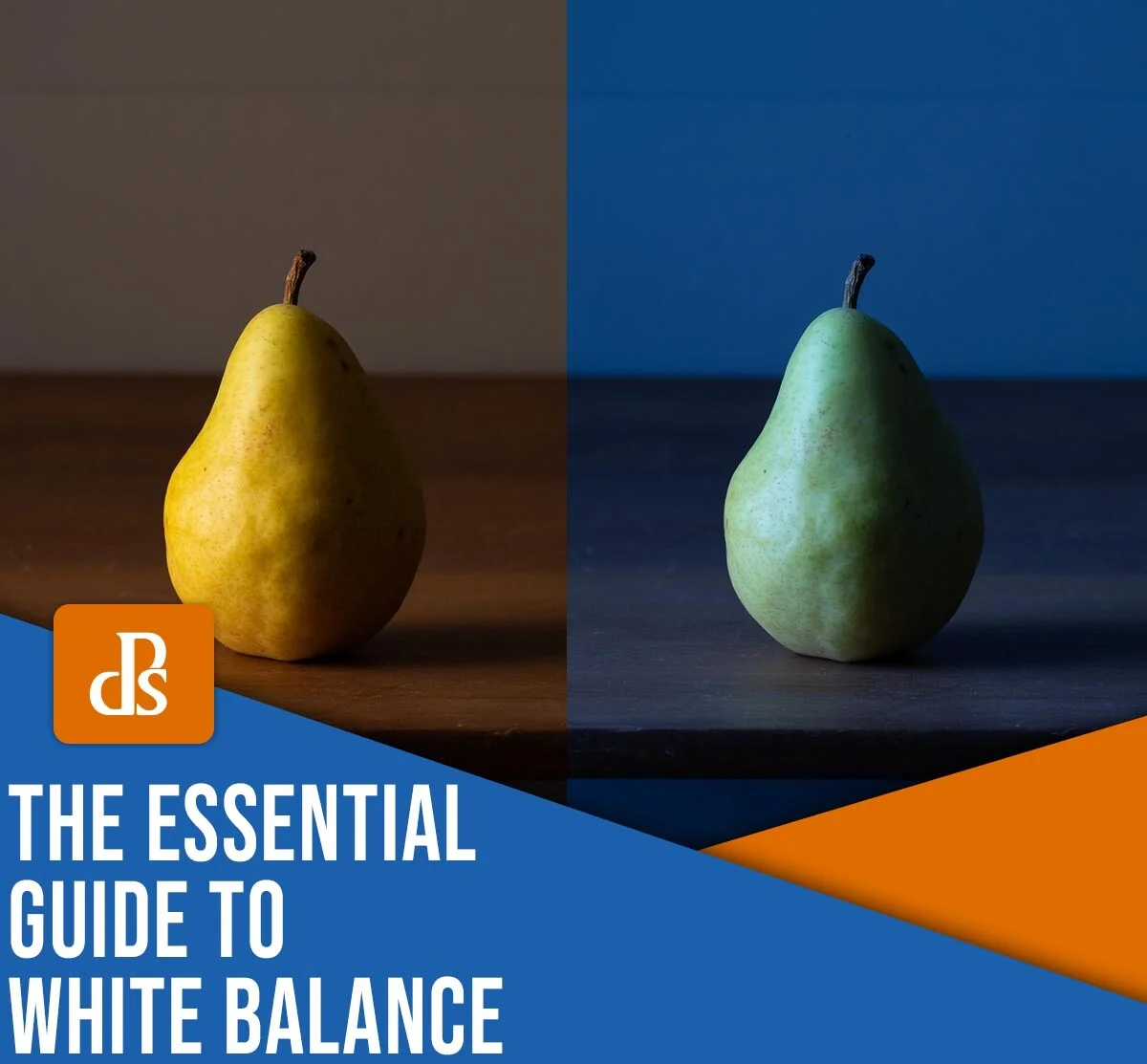
White balance is a crucial element in photography, yet many photographers find themselves perplexed by its intricacies. Understanding and mastering white balance can be the key to capturing images that mirror human perception of color. Proper white balance not only enhances the natural look of your photos but can also be a powerful tool for artistic expression.
Understanding White Balance in Photography
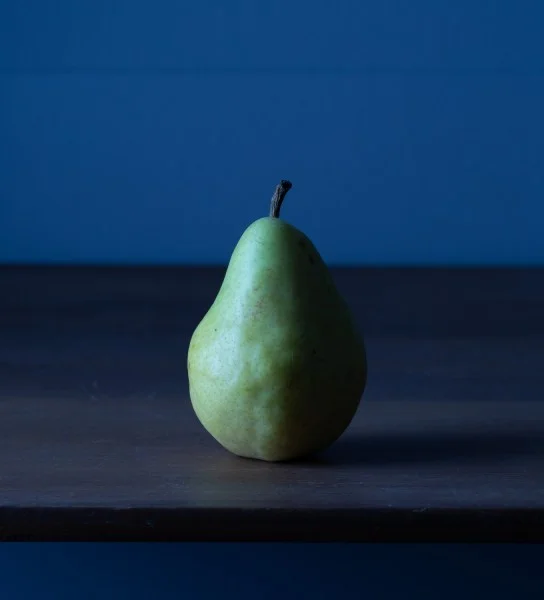
At its essence, white balance refers to the process of eliminating or neutralizing color casts in photographs. Different light sources emit varying color temperatures, resulting in distinct hues that can skew the colors of your images. For instance, photos taken under fluorescent lights can appear blue-tinted, while those shot by candlelight often showcase a warm, yellowish glow.
The aim of adjusting white balance is to make the colors in your images as true to life as possible. This process involves correcting color casts and achieving a visually balanced palette, allowing you to transform images that appear overly blue or yellow into natural, realistic captures.
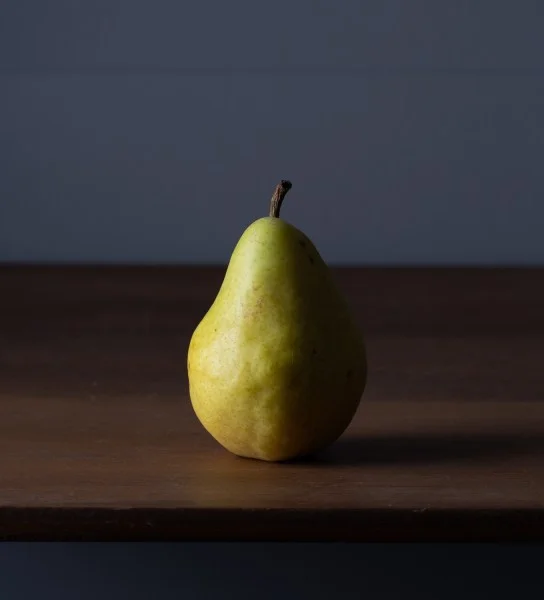
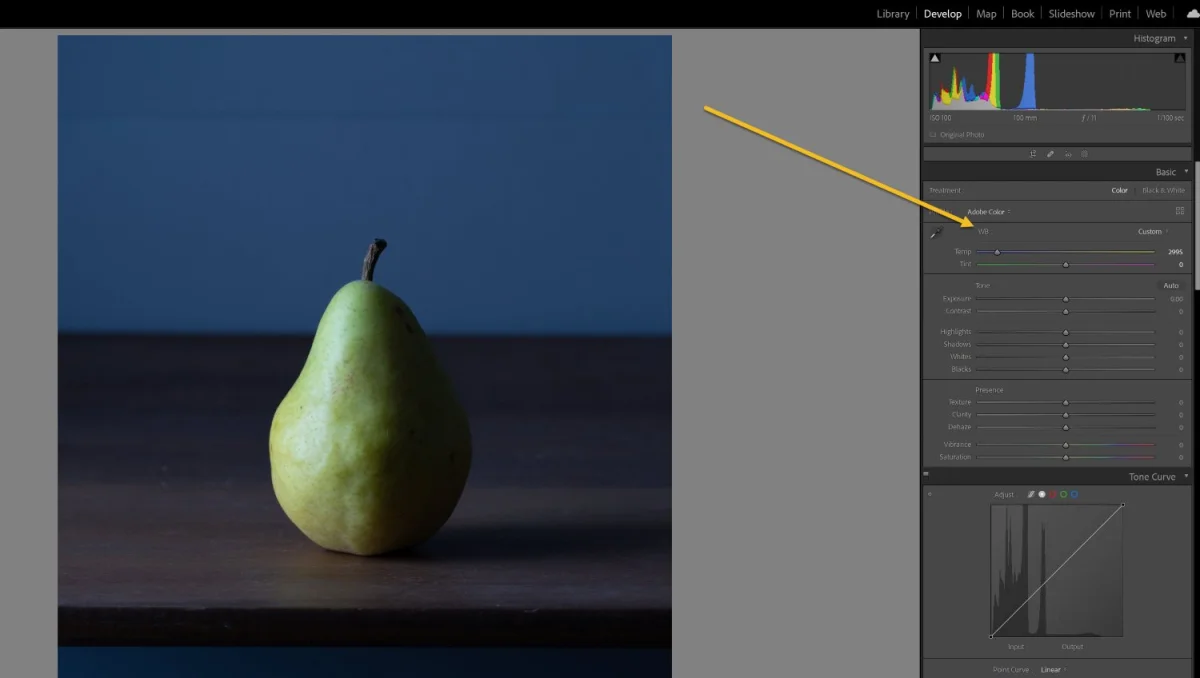
Consider the examples below:
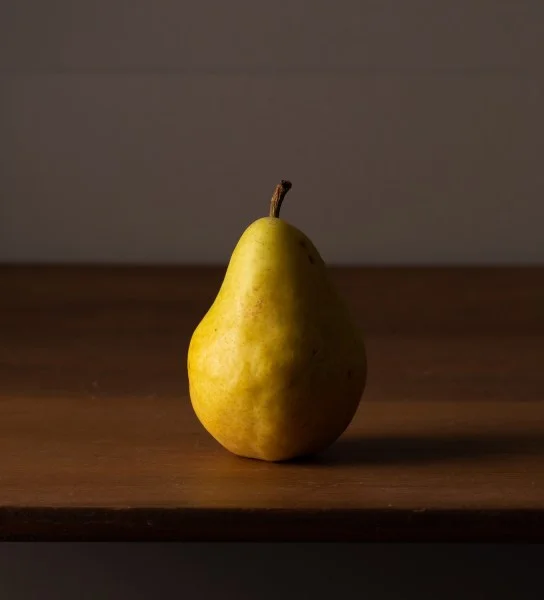
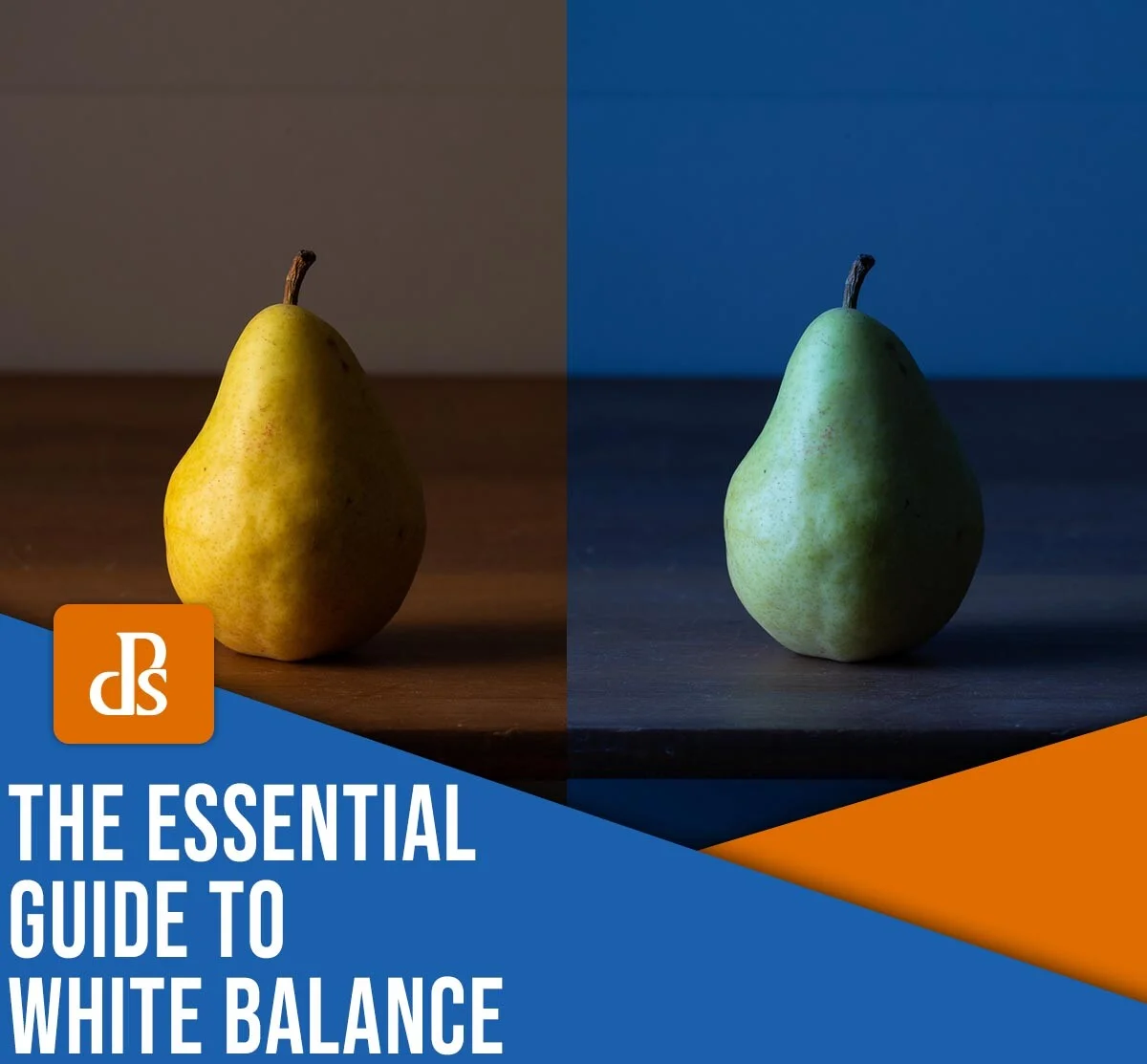
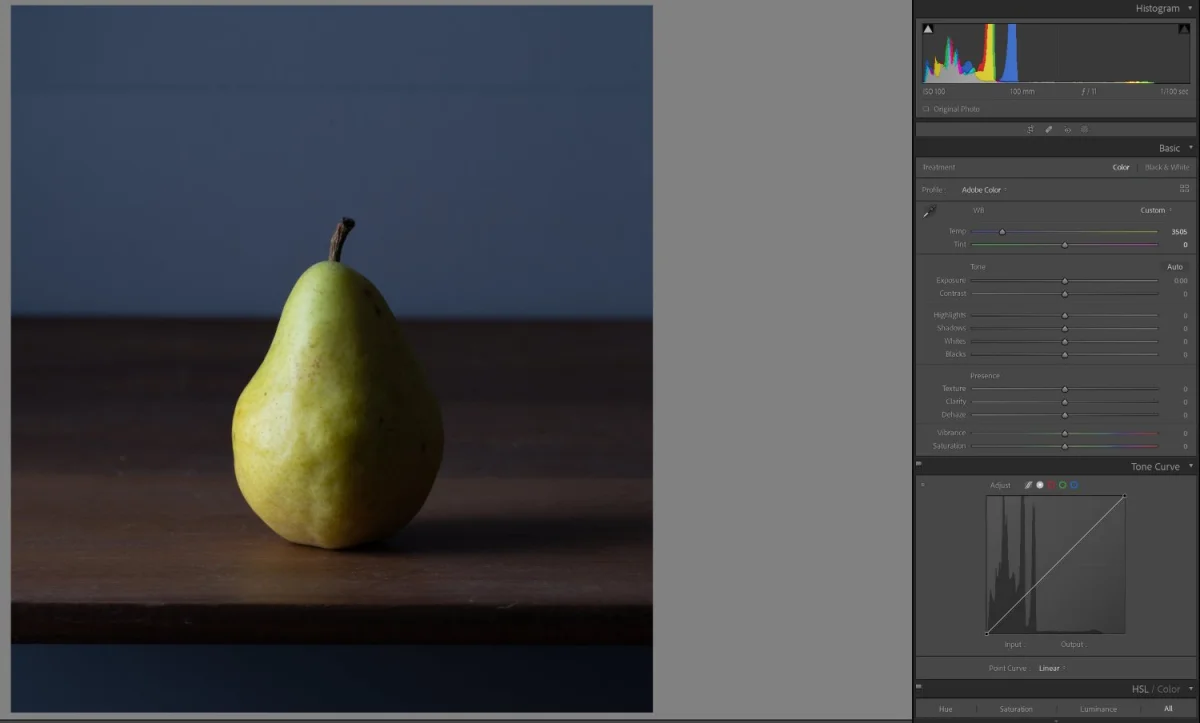
The image above shows distorted blue tones that need correction. After applying proper white balance adjustments, you can achieve a natural representation:
Why White Balance Matters
Properly managing white balance is essential for two primary reasons:
- Authenticity: In capturing scenes like sunsets or portraits, accurate colors reflect the true essence of the moment. For instance, in product photography, color accuracy is crucial for showcasing details and ensuring client satisfaction.
- Aesthetic Appeal: Color casts can create unattractive images. They may result in unflattering skin tones, muddy shadows, or harsh highlights that disrupt the visual integrity of your work.
Understanding white balance allows you not only to correct errors but also to manipulate colors artistically when desired.

White Balancing Methods: Pre- and Post-Processing
There are two main approaches to adjusting white balance:
- In-camera adjustments before capturing the image.
- Post-processing adjustments after the image is taken.
In-Camera White Balancing
Modern cameras offer various preset white balance options, such as Tungsten, Cloudy, and Flash. These presets help your camera adjust to different lighting scenarios efficiently.
For more personalized adjustments, many cameras allow users to set a custom white balance by selecting a specific Kelvin value. This provides precise control—higher Kelvin values balance cooler light, while lower Kelvin values help with warmer hues.
One useful technique involves using a gray card to set a custom white balance. Simply photograph the gray card in your current lighting, and your camera can create an accurate color temperature profile based on that shot.
However, in-camera adjustments have limitations:
- Changing lighting conditions throughout a shoot can disrupt your settings.
- Preset adjustments are often approximations and may not yield perfect results.
- Capturing moving subjects from a distance makes custom readings challenging.
Post-Processing White Balancing
If you prefer flexibility, post-processing white balance adjustments can be effective. By setting your camera to auto white balance during shooting, you can later utilize editing software to refine the images.
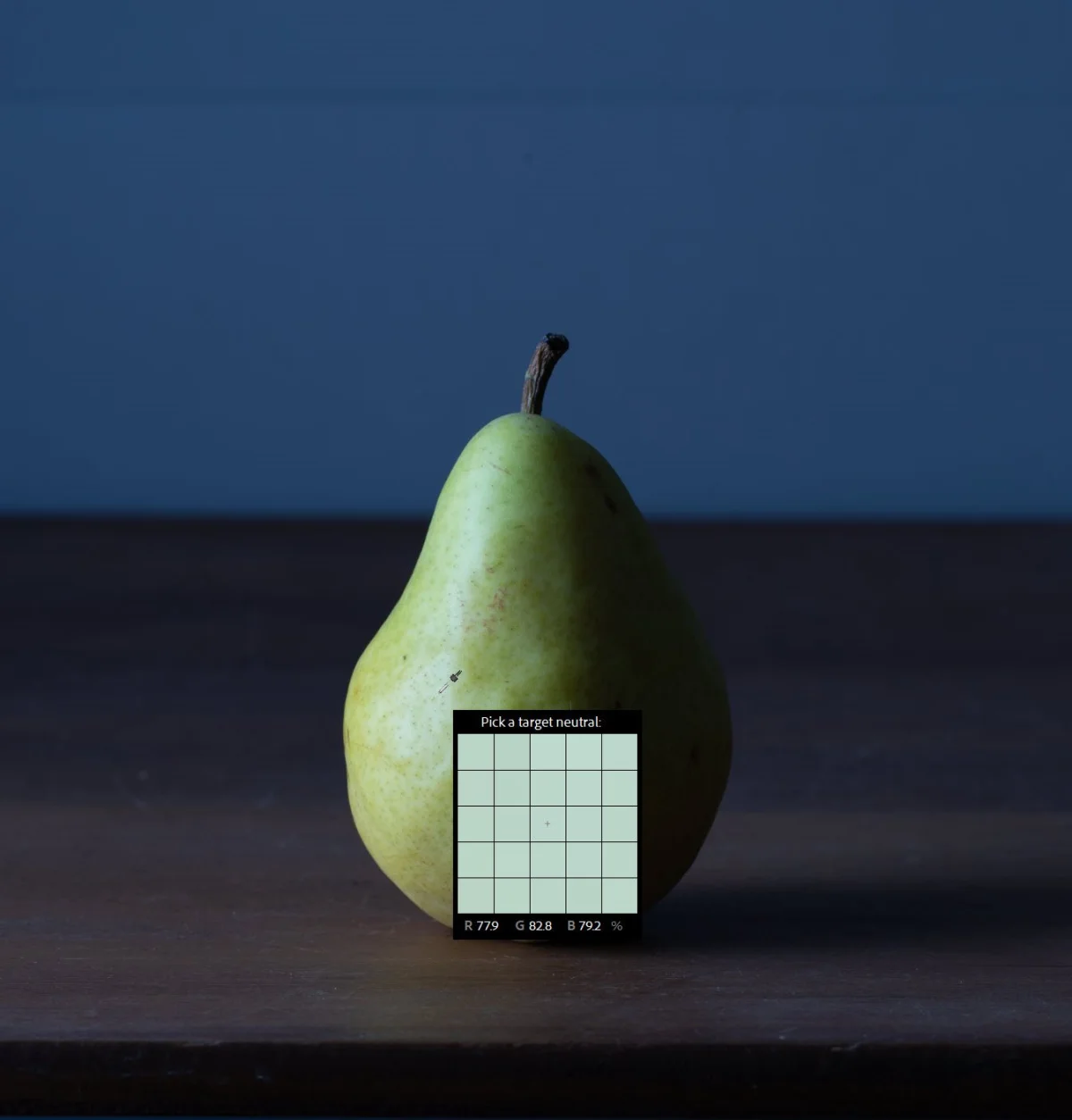
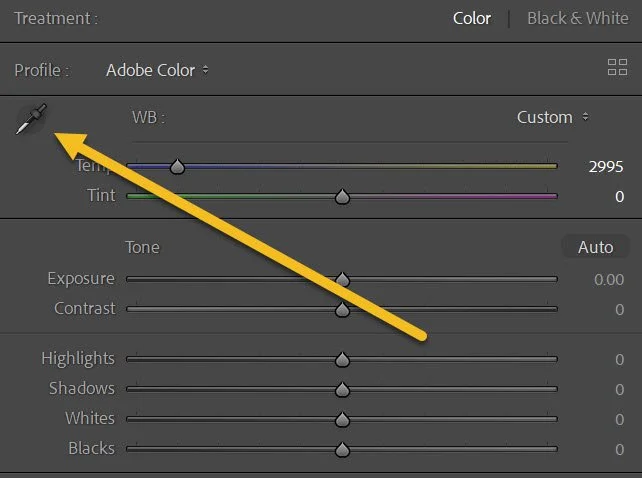
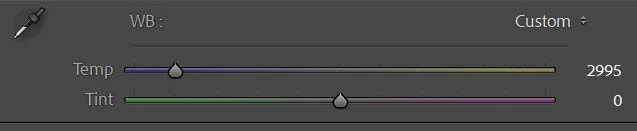
Most editing platforms, like Lightroom, include a white balance eyedropper tool that allows you to select a neutral area in the image. You can further adjust the Temperature and Tint sliders for fine-tuning.
Despite its advantages, this method has its considerations:
- It may require additional post-processing time, especially with numerous images.
- If you don't have a gray card in the scene, achieving an ideal white balance can be tricky.
- For maximum flexibility, shooting in RAW format is recommended, as it allows for extensive white balance adjustments when compared to JPEGs.
The Evolution of White Balance: Impact of AI in 2026
Recently, AI technologies have transformed white balance methodologies:
- Improved In-Camera Algorithms: Current DSLR and mirrorless cameras analyze scenes intelligently. This capability means many photographers can now rely on auto white balance (AWB) for most situations, only switching to manual adjustments for tricky mixed-light scenarios.
- Live Previews: Mirrorless technology allows for real-time white balance feedback, reducing surprises at the editing stage.
- AI-Powered Editing Tools: Software like Lightroom enhances batch processing of images with AI-assisted tools that sample established neutral tones across batches, leading to consistent corrections.
- Video Considerations: For video shooters, using a fixed custom Kelvin value is preferred to prevent mid-shot fluctuations that AWB may introduce.
Applying White Balance Presets Effectively
Leveraging in-camera white balance presets can streamline your workflow:
- Sunny: Ideal for bright, clear days.
- Shade: Useful in heavily shaded areas, such as park environments.
- Cloudy: Effective for overcast days where light is diffused.
- Flash: Suitable when employing on-camera flash.
- Incandescent: Best for indoor environments with warm lighting.
- Fluorescent: Tailored for settings with fluorescent lighting.
Lightroom: White Balancing Step-by-Step
To white balance in Lightroom:
- Open an image in the Develop module, and locate the WB section.
- Select the Eyedropper icon and click on an area designed to be neutral gray or white.
- Fine-tune your adjustments using the Temperature and Tint sliders for a balanced image.
Creative Applications of White Balance
While correcting white balance is paramount, intentionally pushing color temperatures in the wrong direction can yield engaging artistic results:
- Applying cool tones can create a somber or enigmatic mood.
- Opting for warmer tones fosters an inviting or nostalgic atmosphere.
- Using 'incorrect' white balance can enhance the scene's natural conditions, like giving a sunset photograph a more vibrant, warm quality.
These effects should be used judiciously to avoid any overly unnatural results.
Final Thoughts on White Balance
You now possess a comprehensive understanding of white balance in photography. By actively managing this aspect of your workflow, you can achieve images that reflect the authenticity of the world around you while also exploring creative possibilities.
Experiment with these techniques, mastering the balance of accuracy and creativity to make your photographs shine. Your adventure with white balance doesn’t have to end here—keep exploring and refining your skills!
Frequently Asked Questions
Why is white balance important in photography?
White balance is crucial as it ensures the colors in your images appear accurate and natural. Improper white balance may lead to undesirable color casts, impacting the image's quality.
What is the difference between white balance and color temperature?
While white balance compensates for color casts of both temperature and tint shifts, color temperature refers specifically to light's position on the blue-yellow spectrum.
How can I tell if my white balance is correct?
Correct white balance can often be confirmed when colors in your image appear natural and true to the subject.
Can I adjust the white balance in post-processing?
Yes. Many editing programs offer white balance adjustment tools, allowing photographers to refine their images after capturing them.
Remember, white balance is as much about artistic expression as it is about accuracy. Discover your unique approach to manipulating this essential photography tool!