Enhancing Editing Efficiency: How to Optimize Video for Seamless Playback in OpenShot
| Shelf | Cameras & Lenses |
|---|---|
| Date in | |
| Readers | 958 |
Boost your editing workflow by optimizing videos in OpenShot, making playback smoother without compromising final export quality.
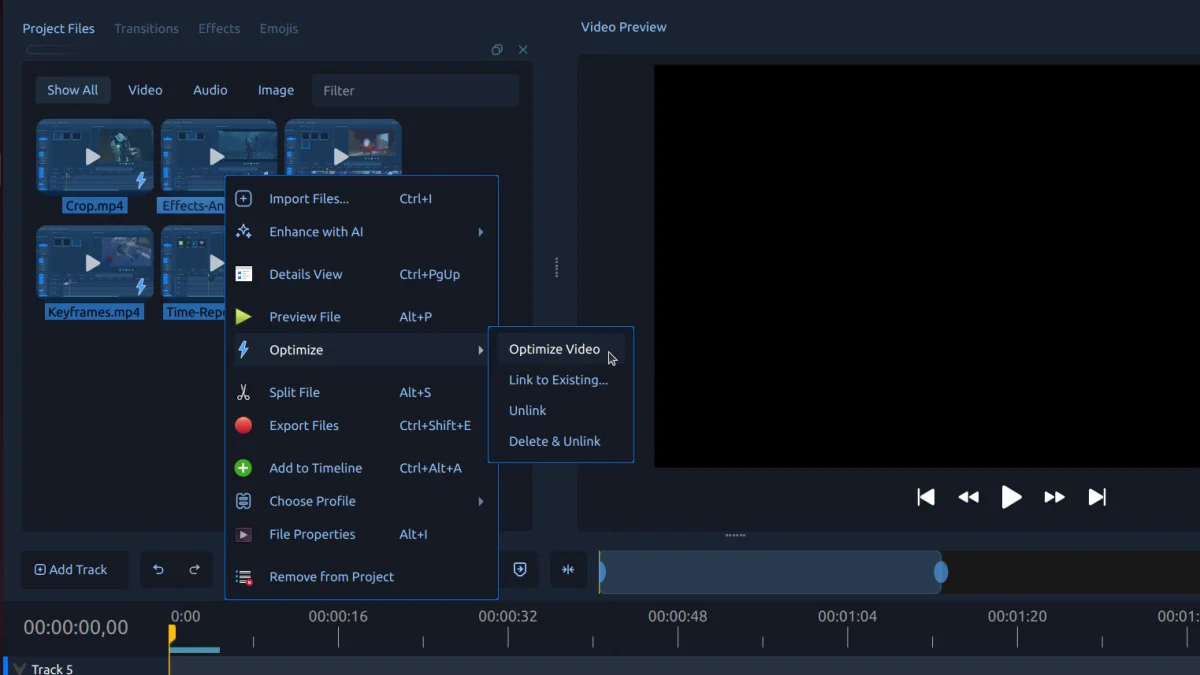
Optimizing your video files is a valuable technique that enhances your editing experience, particularly when dealing with large, high-resolution clips. This process enables smoother playback, scrubbing, trimming, and previewing—all essential for efficient editing—without affecting the quality of the final export. In OpenShot, this process is referred to as "Optimize," making it an accessible solution for both novice and seasoned editors.
Understanding Video Optimization in OpenShot
When you choose to optimize a video in OpenShot, the software creates a smaller version of your original clip, commonly known as a proxy video. This proxy file is designed for efficient editing operations. Instead of relying on the heavyweight full-resolution file for every action, you work with this optimized version; this approach allows your computer to manage more demanding tasks with greater ease. The proxy video retains the aspect ratio and general visual characteristics of the original, ensuring your edits translate effectively to the final product.
The optimization process is particularly beneficial for projects involving high-resolution footage, such as 4K videos, or for clips recorded on screen that may otherwise lag during editing. For instance, many users find that their machines struggle with the intensive data processing that high-res video entails. By providing a lighter alternative, OpenShot ensures that your workflow remains fluid, enabling you to focus on your creative process rather than getting bogged down by technical hiccups. You'll find that this shift in approach is particularly transformative for collaborations, where multiple creatives interact with the same project and require a smoother experience across varied computer systems.
Steps to Optimize a Video in OpenShot
To optimize your video in OpenShot, follow these straightforward steps:
- Import Your Video: Start by adding your media file to the Project Files panel within OpenShot. This panel serves as the organizational hub for your clips, ensuring ease of access during your editing session.
- Right-Click the File: In the Project Files area, locate the video clip you wish to optimize. Right-clicking the file opens a context menu offering a range of options tailored to edit, manipulate, or organize your media.
- Select "Optimize": From the options presented in the context menu, choose Optimize → Optimize Video. OpenShot will commence the processing, which involves analyzing your file and creating the optimized version—this might take a few moments depending on the clip's size.
- Monitor Progress: While the optimization is underway, OpenShot displays progress indicators directly on the clip’s thumbnail. This provides real-time updates, so you know exactly when the process will be complete.
- Edit with Improved Playback: Once the optimization is finished, you can proceed to edit your video using the newly created proxy file. This approach lets you retain the original high-quality version for your final export, maintaining the integrity of your visuals.
Tip: This optimization method benefits clips shot in 4K, screen recordings, or any footage that tends to cause playback issues. By ensuring smoother performance, you can avoid frustrations that often arise from lagging during the editing process. Prioritizing this aspect of your workflow can help you maintain momentum and creativity.
Experience the Benefits of Video Optimization
If you've been encountering sluggishness or choppy playback during editing, taking advantage of the Optimize Video feature in OpenShot could dramatically improve your creative workflow. By downloading and installing the OpenShot Video Editor—which is free and open-source—you can directly assess the impact of optimizing your clips. Once you've made an optimized version, you'll likely notice significant improvements; having a more responsive interface can liberate your creative instincts.
By streamlining your editing process in OpenShot, you enhance your creative capabilities while also saving valuable time. The combination of an optimized workflow and reduced technical stress transforms video editing from a burden into a fluid creative endeavor. This simple yet effective method not only elevates your product but fosters a more enjoyable and productive editing experience.
Implications and Future Outlook
As video content continues to saturate various media platforms, the importance of having tools that facilitate efficient editing processes grows. The need for optimization is unlikely to diminish as editors increasingly engage with complex, high-resolution footage. What this means for you, whether you're an aspiring vlogger or a professional filmmaker, is that leveraging optimization can keep you competitive.
Moreover, as technology evolves, the capabilities of editing software will likely expand to incorporate even more advanced optimization features. Editors may find that software like OpenShot not only aids in handling current demands but also adapts to future trends in video quality and filmmaking techniques. The takeaway? Embracing optimization now will prepare you for a landscape where efficiency remains paramount.
Why Optimization Matters
In the fast-paced environment of video production, efficiency drives creativity. By utilizing the optimized playback feature in OpenShot, you foster a more responsive editing space that allows for greater focus on your story and visuals. The continuous push for higher resolution footage means techniques like optimization are not just useful—they're necessary. Smoother editing experiences lead to broader creative experimentation, inviting new storytelling methodologies and visual explorations. This is more significant than it looks.